Mobilteg Saha

On-premise installation guide

Install Mobilteg Saha on your own server

The single-file setup program installs the application, the Windows service and PostgreSQL (or uses your existing server if you prefer) on your Windows server, adds the firewall rule and activates the licence. After installation, the web panel and the field app connect to this server.

Download installation packageTry free for 7 days
System requirementsStep-by-step installationAfter installationDemo, licence and supportFAQPackage integrity

System requirements

The setup program checks these itself in the first step; you can also see them with "Check first" without anything being written.

  • 64-bit Windows Server 2019 / Windows 10 (1809, build 17763) or later.
  • Run the setup program as administrator.
  • At least 4 GB of free space on the drive holding the program and data folders.
  • Free ports: public HTTPS (default 443) and optional HTTP (80); inside the server, API 3001, Host 47801 and the bundled PostgreSQL (default 5433). If any port is in use (e.g. by IIS), the pre-check tells you.
  • For HTTPS, a non-expired server certificate with a private key in the LocalMachine\My store. Without one, unencrypted HTTP only on a local network closed to the internet, after confirming a warning.
  • Database: the bundled PostgreSQL 16 (installed by setup) or an existing PostgreSQL server connected with its superuser (tested with 16; older versions trigger a warning).
  • Microsoft Visual C++ 2015–2022 (x64) Redistributable for the bundled PostgreSQL; if it is missing, the PostgreSQL step tells you.
  • Internet access to the licence server during the activation step; a demo code can only be converted to a licence over this connection. For a licence-key installation without internet, setup still finishes and activation is done from the panel with an offline file.

Step-by-step installation

Click the image to open it full size.

  1. 1

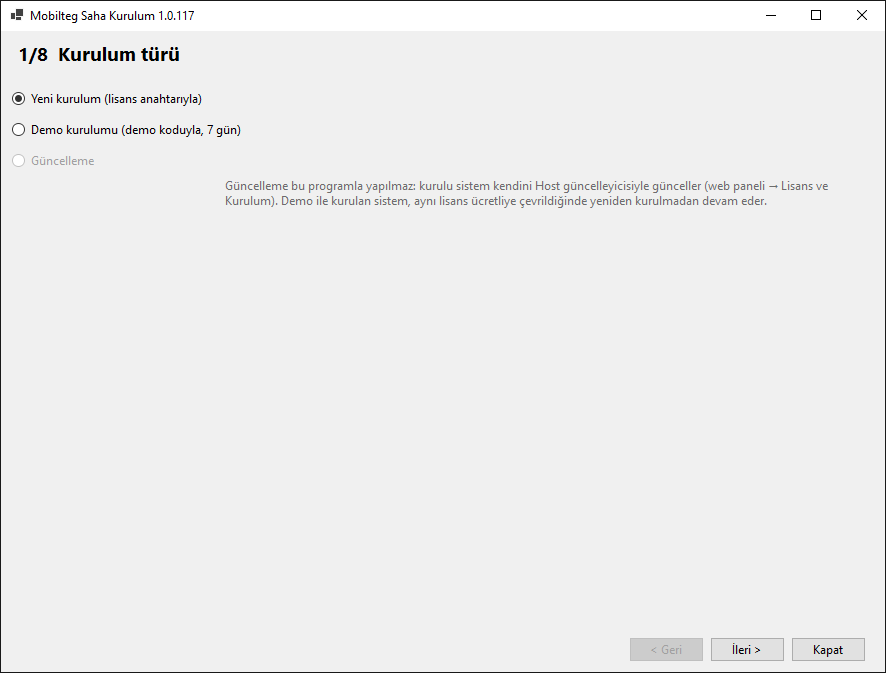
    Installation type

    The setup program asks for administrator permission when it opens. On the first screen, choose "New installation (with licence key)" or "Demo installation (with demo code, 7 days)".

    "Update" cannot be selected: an installed system updates itself from the web panel. If a setup was left unfinished on the server, the program first offers to resume it or roll it back.

    Setup wizard: installation type screen
  2. 2

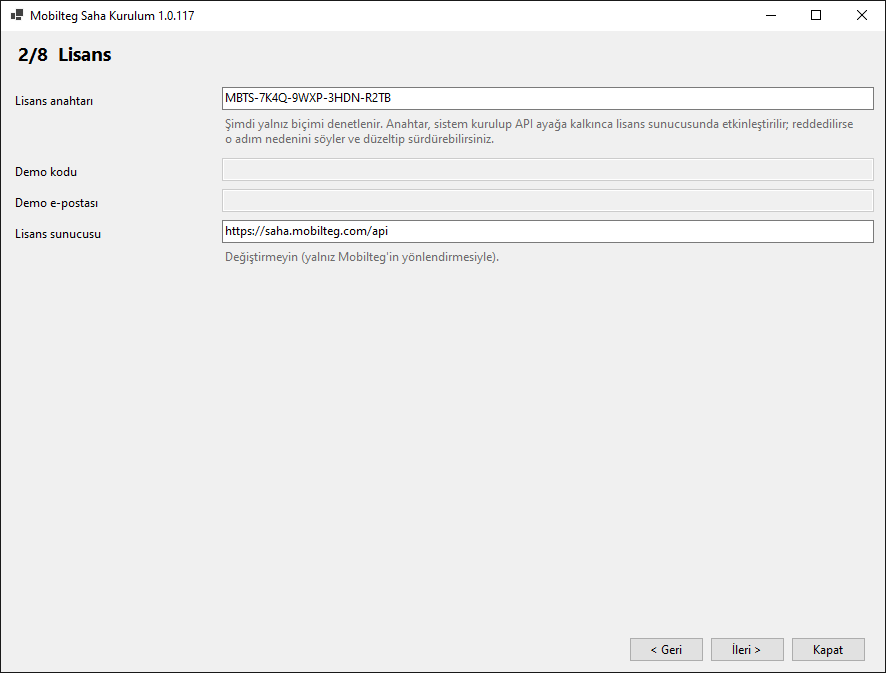
    Licence

    For a new installation, enter the licence key in the format MBTS-XXXX-XXXX-XXXX-XXXX; for a demo, enter the demo code and the email address you gave in the demo request.

    Only the key format is checked on this screen. Once the system is installed and running, the key is validated against the licence server in the activation step; if it is rejected, that step tells you why, and you fix it and continue. Do not change the "Licence server" field.

    Setup wizard: licence key screen
  3. 3

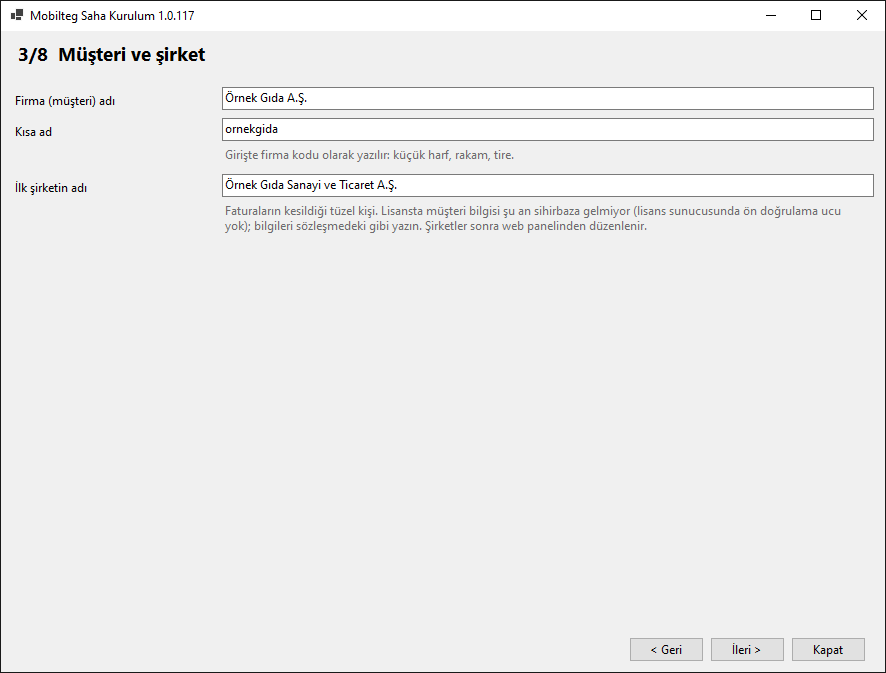
    Customer and company

    Enter the company name, short name and the name of the first company. The short name is suggested from the name and is entered as the company code at sign-in (lowercase letters, digits, hyphens).

    The first company is the legal entity that issues invoices; companies can be edited later in the web panel.

    Setup wizard: customer and company screen
  4. 4

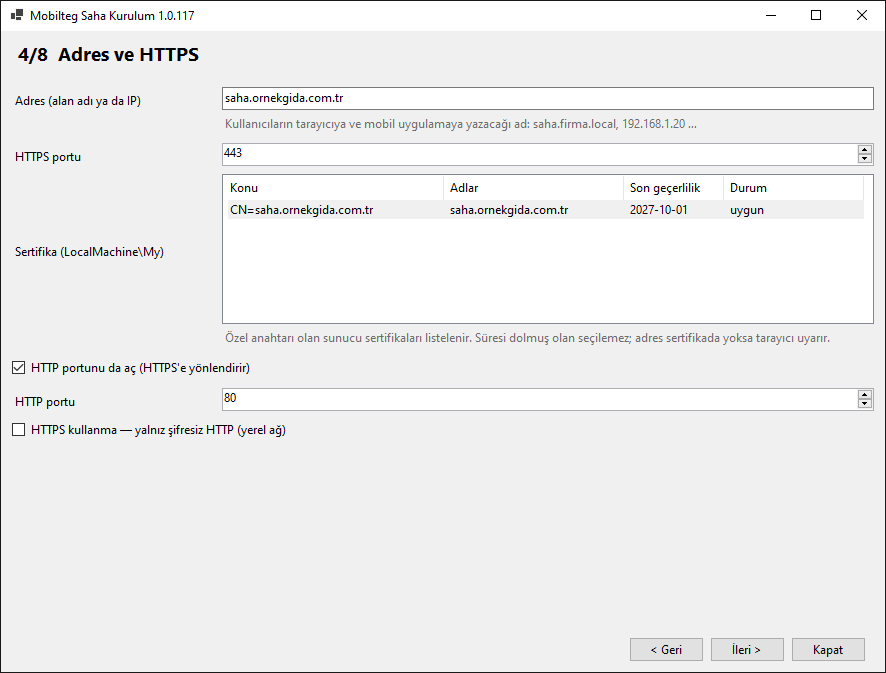
    Address and HTTPS

    Choose the name users will type into the browser and mobile app (e.g. saha.company.local or 192.168.1.20), the HTTPS port and a certificate from the LocalMachine\My store. Expired certificates cannot be selected; certificates with less than 30 days left or that do not cover the address are flagged.

    Optionally an HTTP port is also opened and redirects to HTTPS. The certificate-free "unencrypted HTTP only" option proceeds only after an explicit security warning is confirmed.

    Setup wizard: address and HTTPS certificate screen
  5. 5

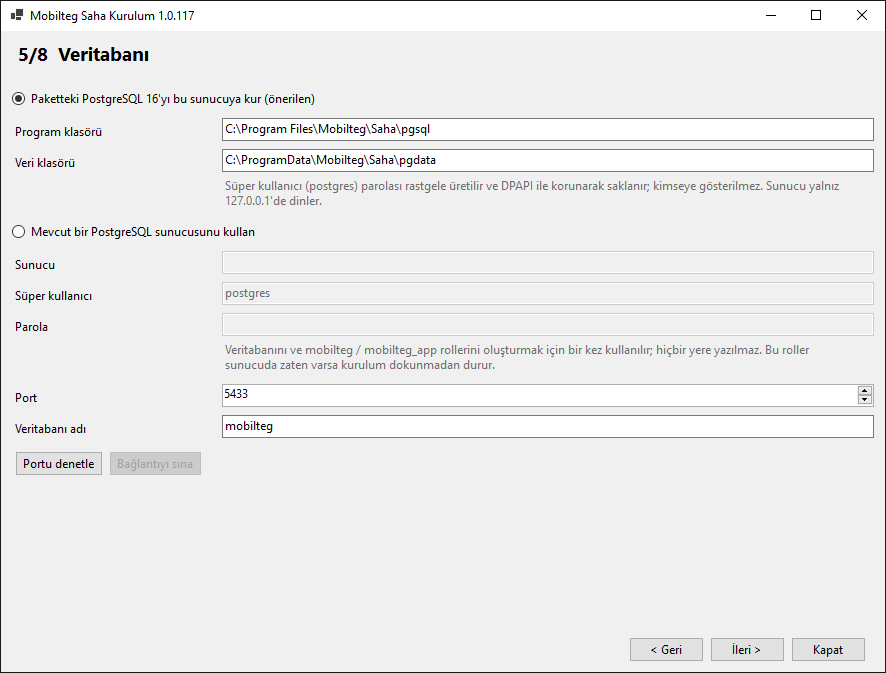
    Database

    Recommended: the bundled PostgreSQL 16 is installed on this server (program and data folders, port; default 5433). The superuser password is generated randomly and stored protected with DPAPI; the server listens only on 127.0.0.1.

    An existing PostgreSQL server can also be used: enter the server, port, superuser, password and database name; you cannot continue until "Test connection" succeeds. The password is never written anywhere.

    Setup wizard: database screen
  6. 6

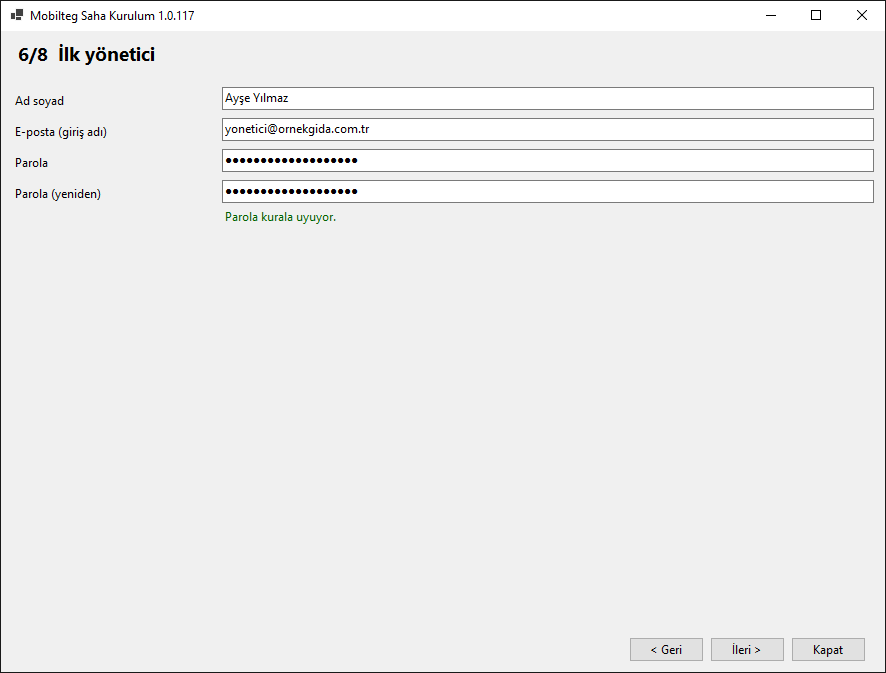
    First administrator

    Enter full name, email (sign-in name) and password. The password must be at least 8 characters long and contain at least three of: uppercase letter, lowercase letter, digit and symbol; common passwords are rejected. The rules are checked as you type.

    The password is never written to any file, log or report.

    Setup wizard: first administrator screen
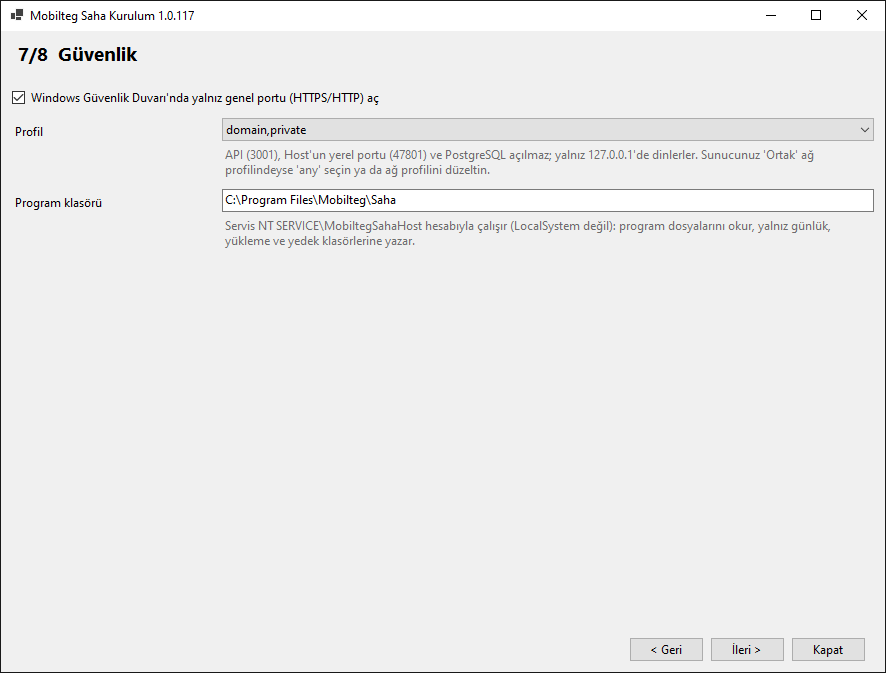
  7. 7

    Security

    In Windows Firewall, a rule is added only for the public port (HTTPS/HTTP); the profile is selectable. The API (3001), the Host's local port (47801) and PostgreSQL are not opened; they listen only on 127.0.0.1.

    The program folder can be changed here. The service runs not as LocalSystem but under the NT SERVICE\MobiltegSahaHost account.

    Setup wizard: security screen
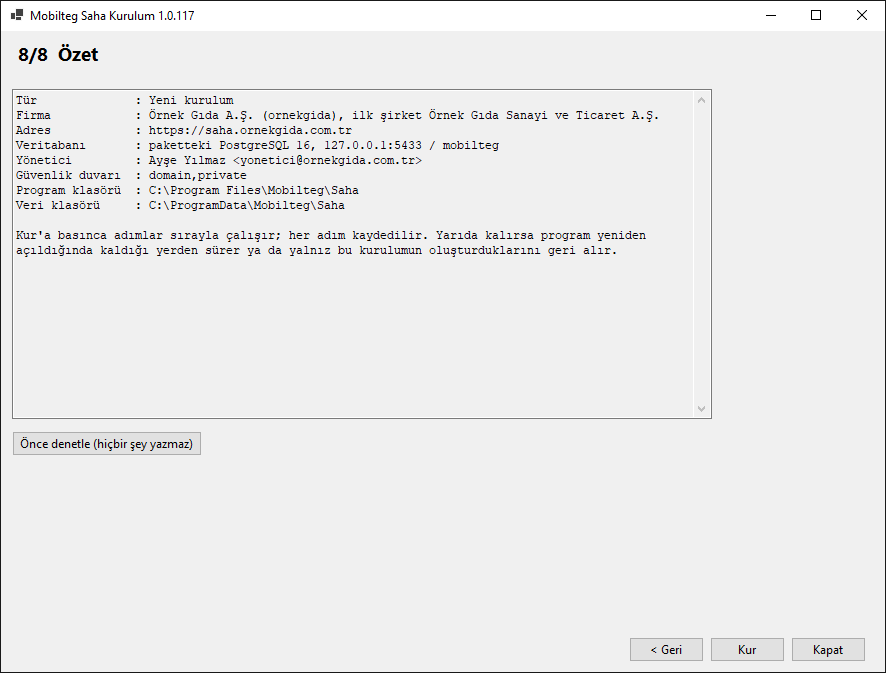
  8. 8

    Summary

    All choices are shown on one screen. "Check first" runs the pre-checks without writing anything; if there are no issues, "Install" starts the installation.

    Setup wizard: summary screen
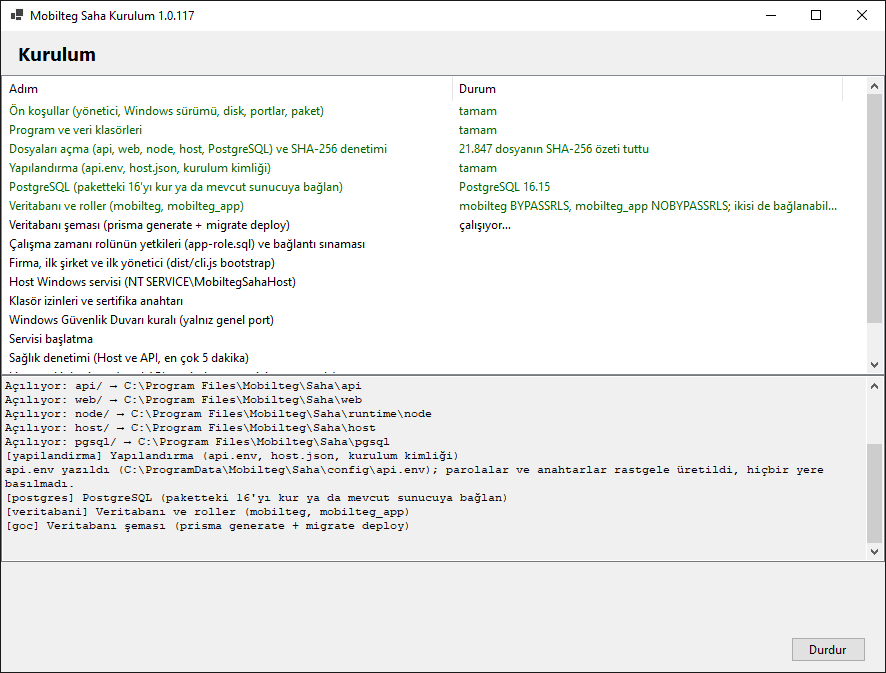
  9. 9

    Installation

    The steps run in order: prerequisites, files and SHA-256 check, configuration, PostgreSQL, database and schema, company and administrator, Windows service, permissions, firewall, startup, health check, licence activation and installation report.

    Every step is recorded. If setup is interrupted, the program resumes where it left off when reopened, or "Roll back" removes only what this installation created; a database containing data is kept.

    Setup wizard: installation steps screen
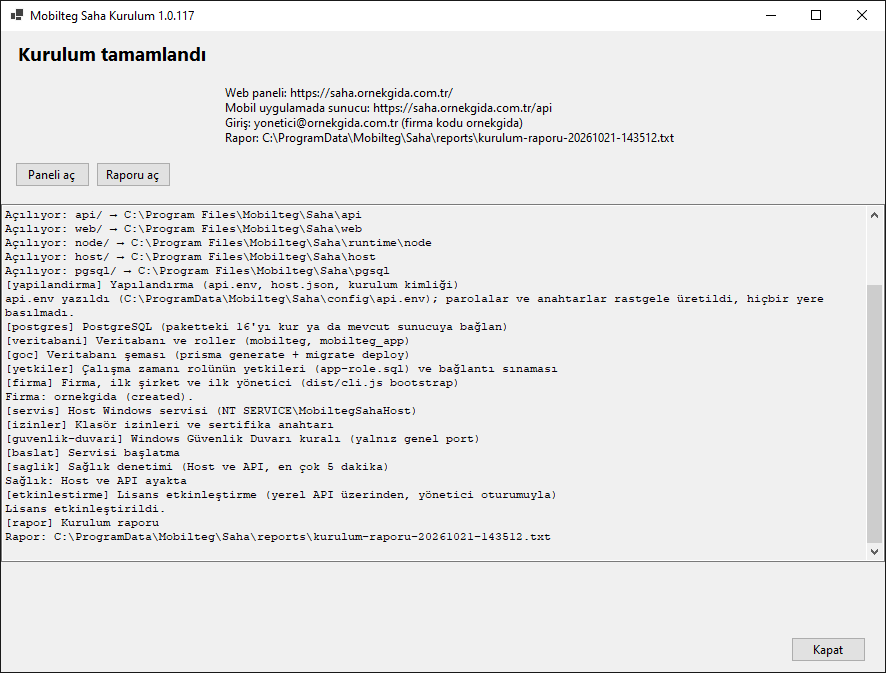
  10. 10

    Installation complete

    The final screen shows the web panel address, the server address to enter in the mobile app (…/api), the sign-in details (administrator email and company code) and the location of the installation report; any warnings are also listed here.

    Click "Open panel" to sign in to the panel. If the licence server could not be reached during a licence-key installation, setup still completes; you then activate the key from the panel.

    Setup wizard: installation complete screen

After installation

Settings → Licence and Installation

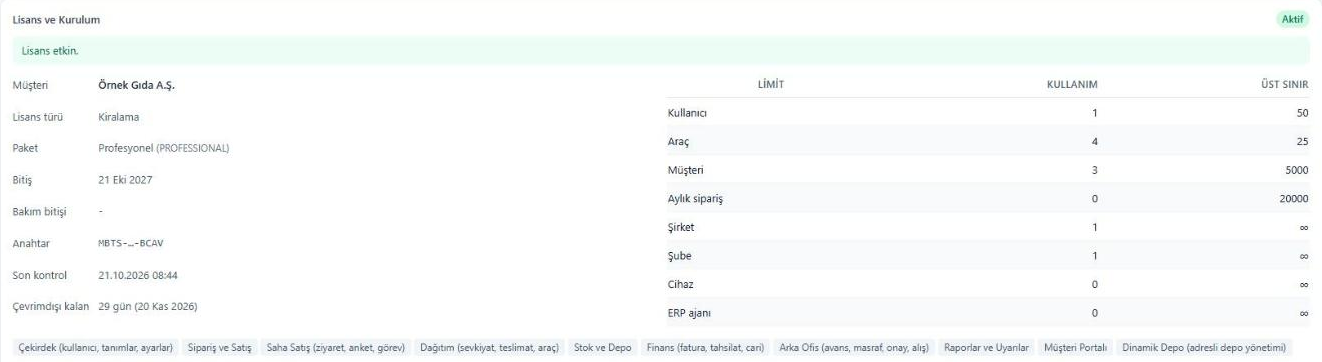
The licence status, type, package, expiry and maintenance expiry, limit usage, last check and remaining offline days are shown here. If the installation is not activated, enter the licence key here and click "Activate"; after a module or term change, "Renew licence now" fetches the new licence immediately.

If the server has no internet: get the file with "Download request file", send it to Mobilteg from a computer with internet access, and upload the response file you receive with "Upload response file". The request file carries the licence key; protect it like the key itself.

Panel: Licence and Installation screen

Settings → Updates

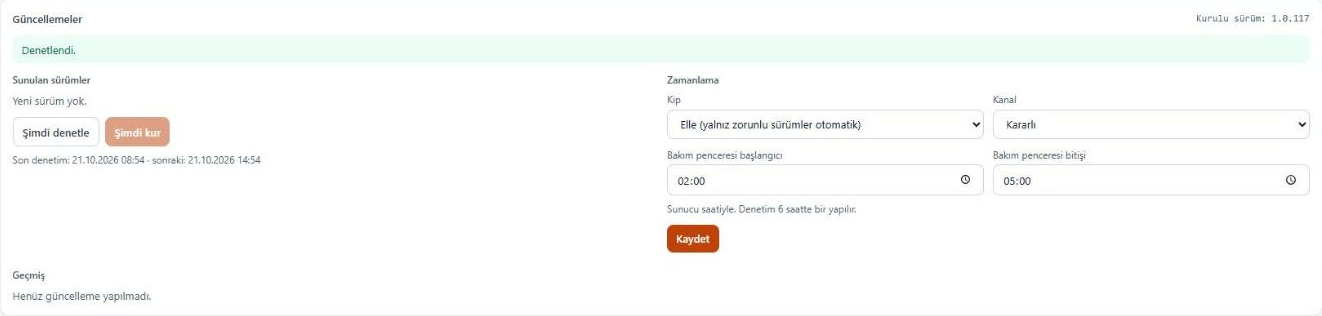
Choose the mode "Automatic (in maintenance window)" or "Manual"; the maintenance window is entered in server time and a channel (stable/beta) is selected. In manual mode you install a release yourself with "Install now"; mandatory releases are installed in the maintenance window in both modes. "Check now" queries for a new release immediately.

On every update the application is stopped, and a database backup (pg_dump) and a copy of the program folders are taken; the last three backups are kept. If a step fails, the files and database are restored and the previous version is started again. The signature of the release manifest and the SHA-256 hash of the package are verified on your server before installation; the history is listed on this screen.

Panel: Updates screen

Settings → Mobile Connection

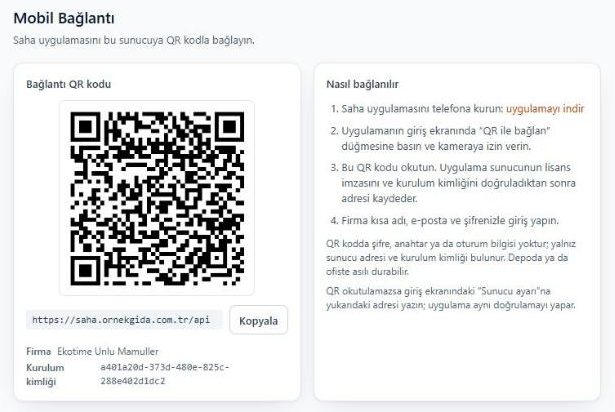
Install the Saha app on the phone (the "download the app" link on this screen opens the download page), tap "Connect with QR" on the sign-in screen and scan the QR code. The app saves the address after verifying the server's licence signature and installation ID; then sign in with the company short name, email and password.

The QR code contains no password or key; only the server address and installation ID. Phones connect only to an activated installation. If the QR code cannot be scanned, type the address manually under "Server settings" on the sign-in screen.

Panel: Mobile Connection screen and QR code

Demo, licence and support

From demo to paid

The demo lasts 7 days and starts at activation, by the licence server's clock. When you move to a paid plan, Mobilteg converts the same licence (same key) to a subscription or perpetual purchase; the installation picks up the new licence at the next check or via "Renew licence now". No reinstallation is needed and the data you entered stays in place.

Offline operation and licence period

The installation renews its licence with the licence server regularly. If the server cannot be reached, it runs fully for the offline period defined in the licence (default 30 days for paid licences, 7 days for demos); the panel warns you in the last 3 days.

If the period is exceeded, or the licence expires or is suspended, the installation switches to read-only mode: records can be viewed, exported and backed up; only changes cannot be made. Your data is never locked under any circumstances.

Support

A ticket you open from the Support Tickets screen in the panel is forwarded to Mobilteg's support desk; the installation ID, version, modules and the last 4 characters of the licence key are attached, but no passwords or personal data. An authorised user can also attach a masked diagnostic report if they wish.

If the Mobilteg centre cannot be reached at that moment, the ticket waits as "Could not be sent to the centre, will retry" and is resent automatically. Support is also available in read-only mode.

FAQ

Does it work without internet on the server?

Yes. Business modules, the web panel and the mobile app work with the local server. Internet is needed only for activation, licence renewal, downloading updates and forwarding support tickets; a licence key can also be activated with an offline file. If the licence cannot be renewed for a long time, the installation switches to read-only mode.

What happens to my data when I move from demo to paid?

It stays in place. Mobilteg converts the same licence to paid; the installation picks up the new licence at the next check or via "Renew licence now". No reinstallation is required.

Can I use my own PostgreSQL server?

Yes. Select "Use an existing PostgreSQL server"; the connecting user must be a superuser and "Test connection" is mandatory. Setup creates the database and the mobilteg / mobilteg_app roles; if these roles already exist on the server, they are left untouched.

I don't have a certificate; can I still install?

Only on a trusted local network closed to the internet, with the "unencrypted HTTP only" option; because passwords travel over the network in clear text, the wizard asks for explicit confirmation. The mobile app connects to an http address only on the local network and with a warning. Get a certificate and switch to HTTPS at the earliest opportunity.

What happens if setup is interrupted?

Reopen the setup program: completed steps are verified and skipped, and it resumes where it left off. If you prefer, you can roll back; only the services, rule, empty database and folders created by this installation are removed, and nothing that existed beforehand is touched.

Do I update with the setup program?

No. The installed system updates itself from the panel (Settings → Updates); the setup program is only for the initial installation.

Is there a silent (command-line) installation?

Yes: with --sessiz --yanit yanit.json. --ornek-yanit outputs a sample answer file, and --denetle runs only the pre-check. The licence key and passwords are not written to the answer file; they are read from environment variables.
Package integrity

Loading package information…

If you have questions write to us.